

Vanilla Radio & Podcast Player
The new release supports downloading episodes. Save preferred epsiodes on your mobile phone or tablets and listen to them without Internet access.
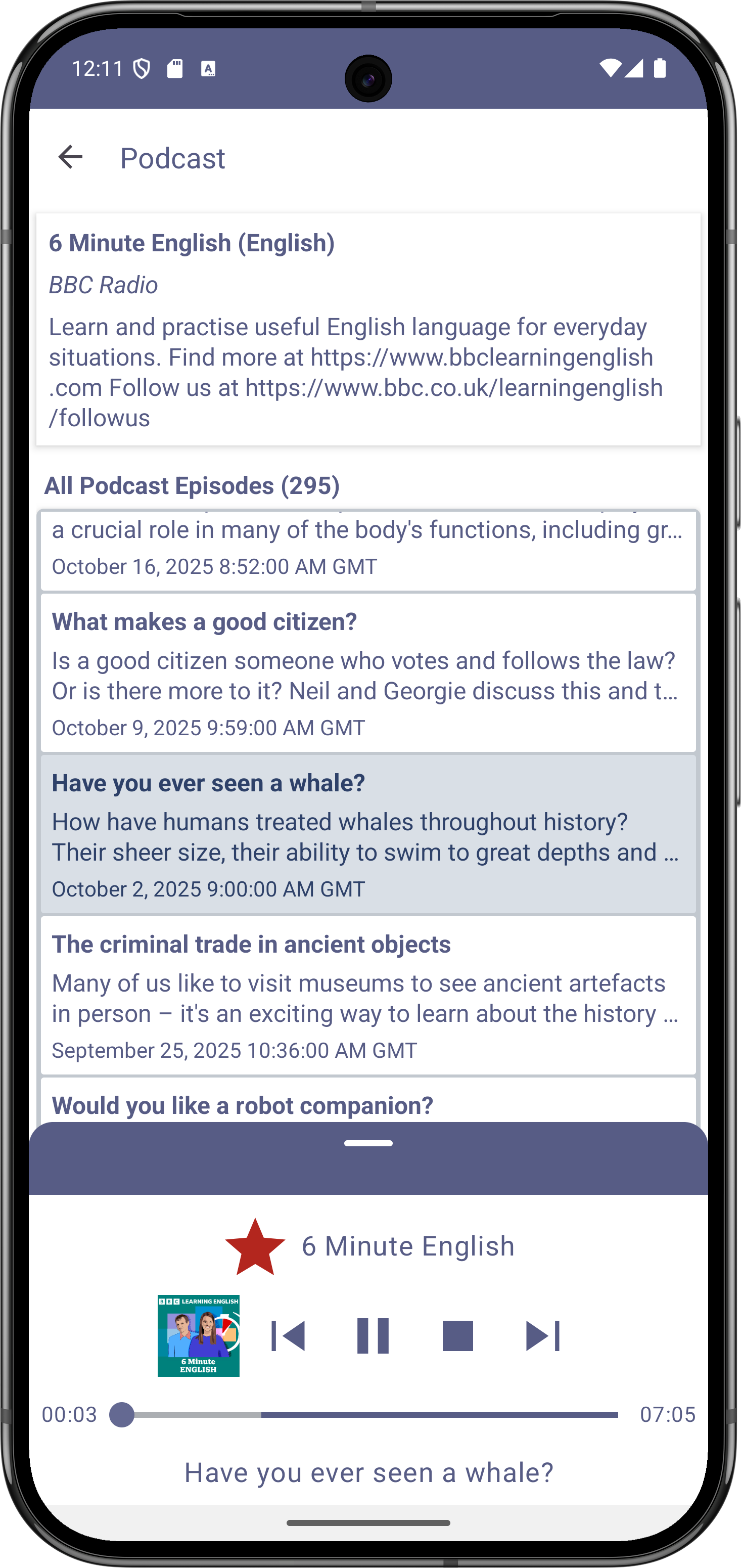
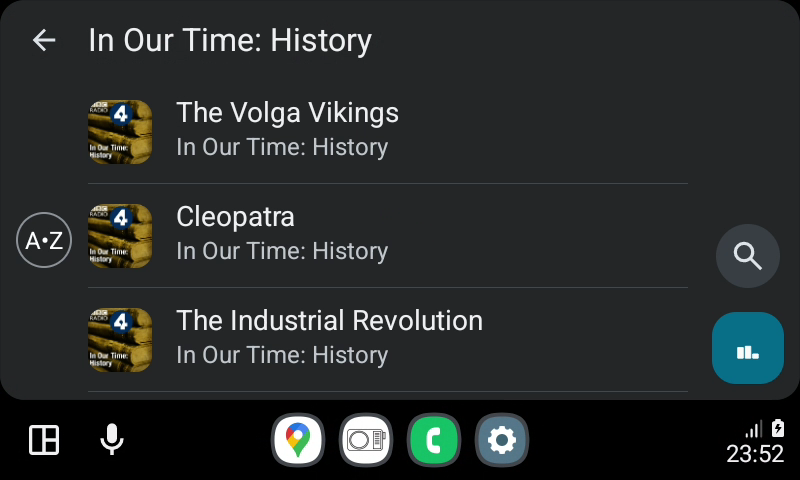
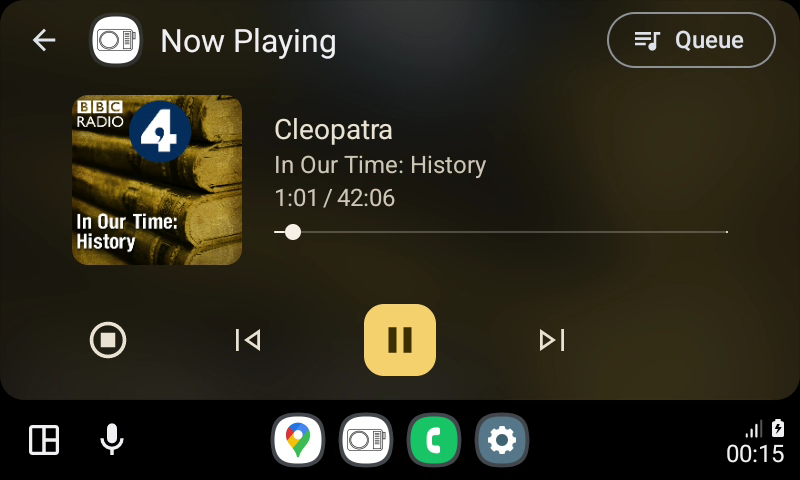
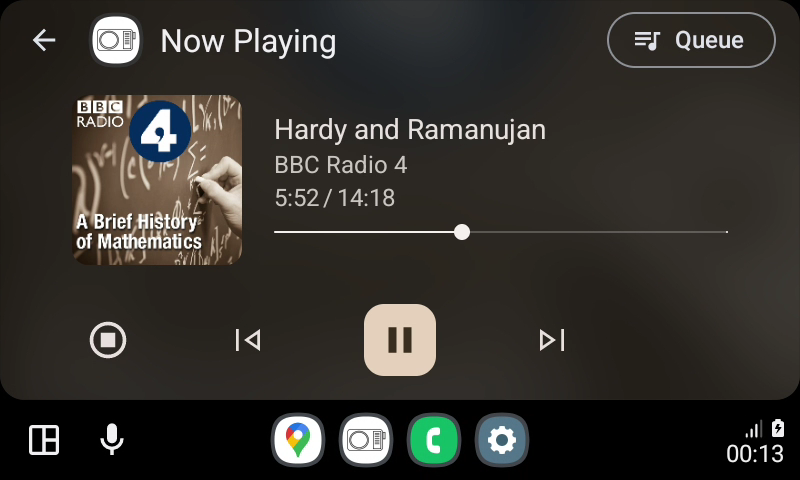
Listen to your favorite radio stations and podcasts with VanillaRadioplayer. Use it on your mobile phone, tablets, Android TV (Google TV, Chromecast) and even in your car (Android Auto). Your favorite stations and podcasts can be synchronised across all your devices.
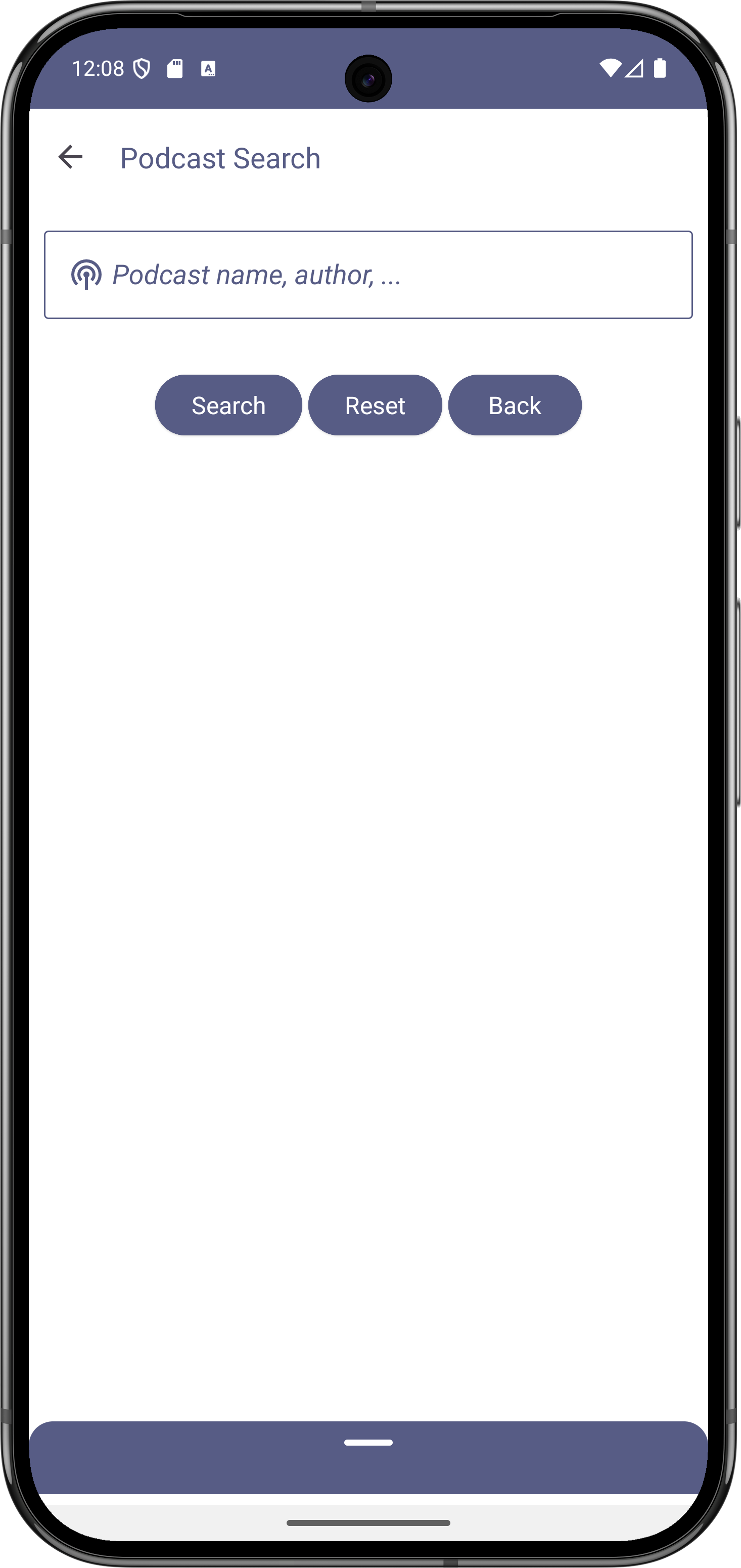
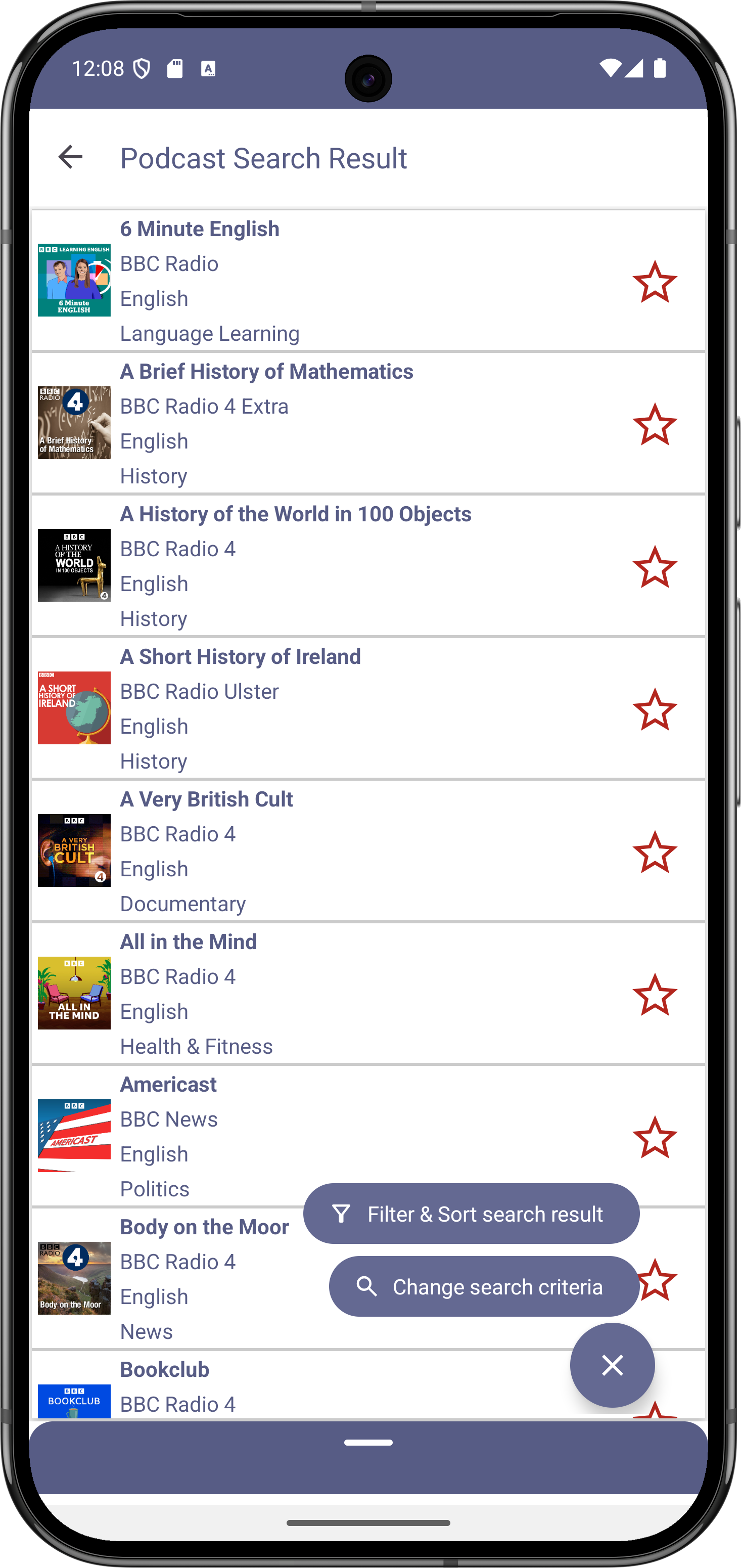
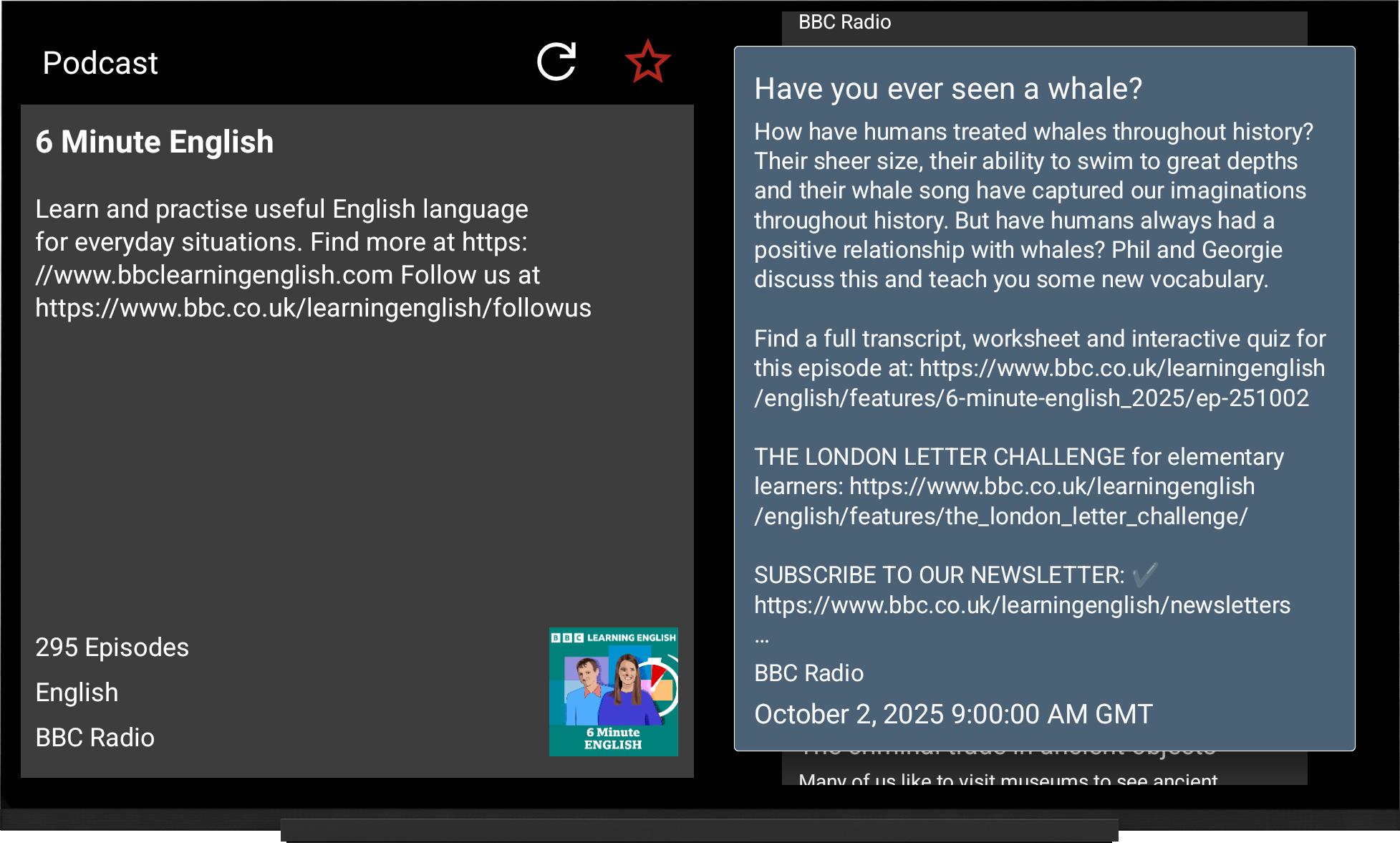
The new release supports Podcast search. Look for new podcasts and add them easily to your favorites list. Supported on mobile phone and TV (Android Car support follows).
No personal data of any kind is collected, stored or distribute to third parties. For more information see our
privacy policy
.
Station search results are provided by
radio-browser.info
.
The VanillaRadioplayer app uses
Glide
under
Open Source Licenses
.
Features

Podcast Search
Find your favorite podcasts or discover new ones in a worldwide collection of podcasts in different languages.
Download Episodes
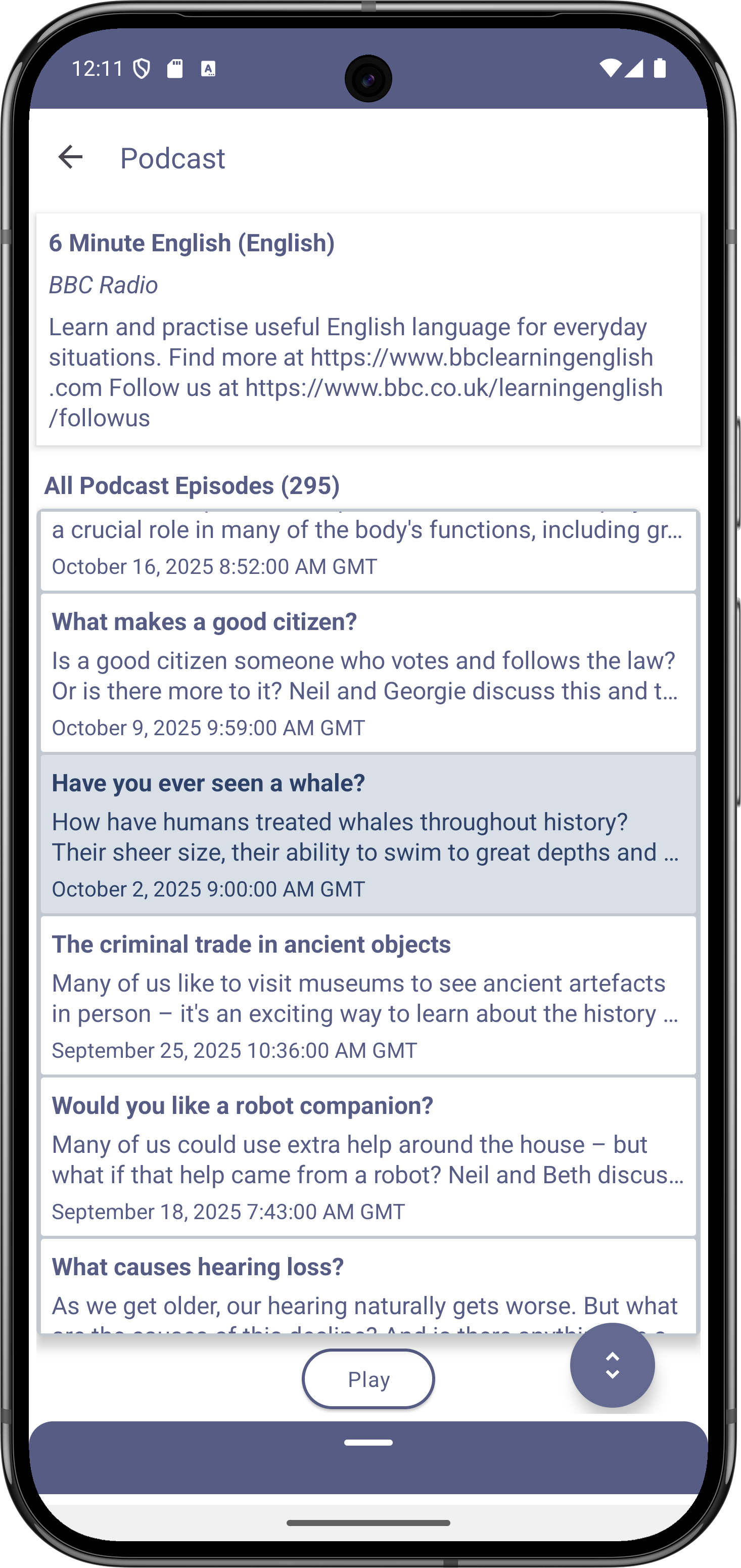
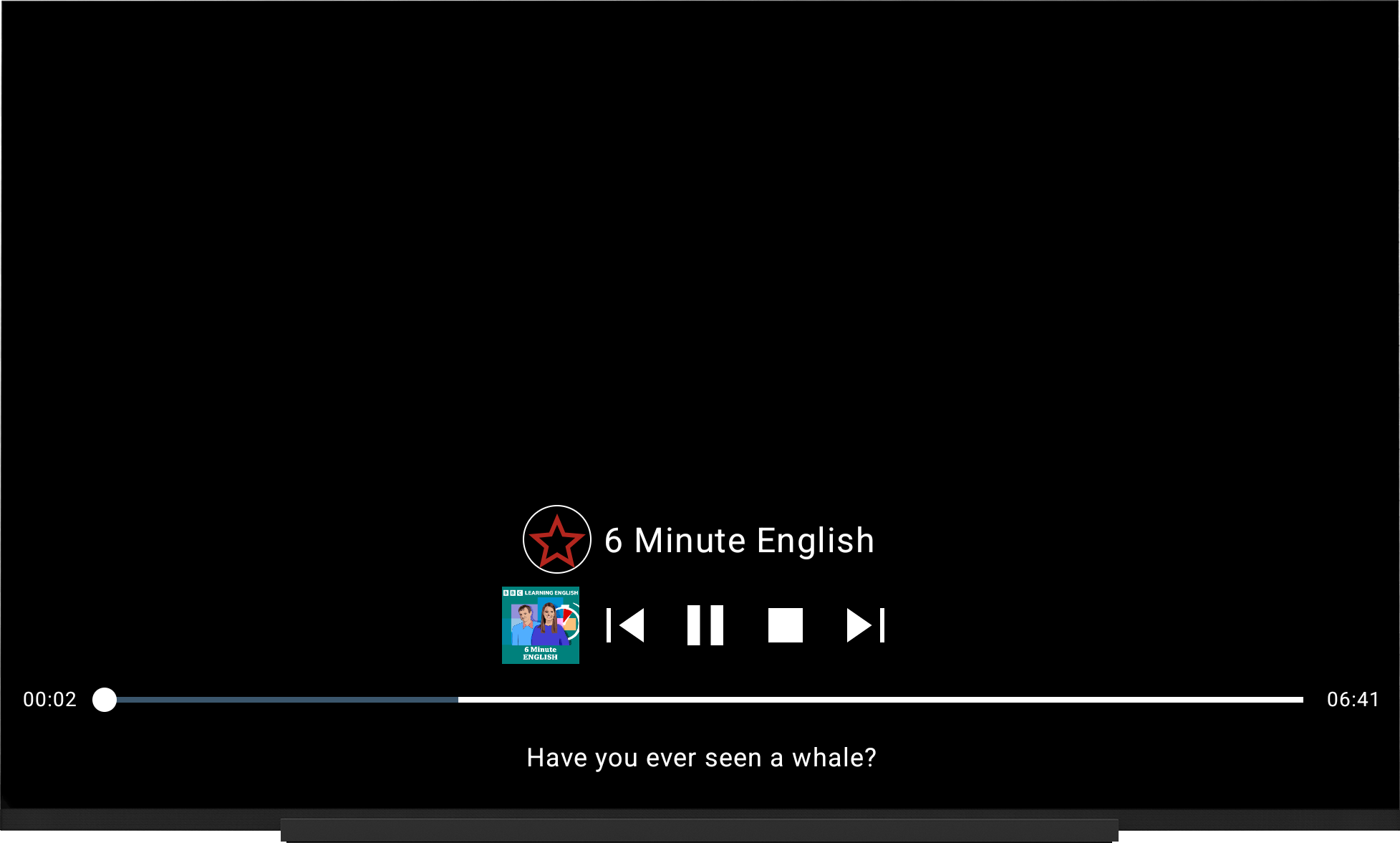
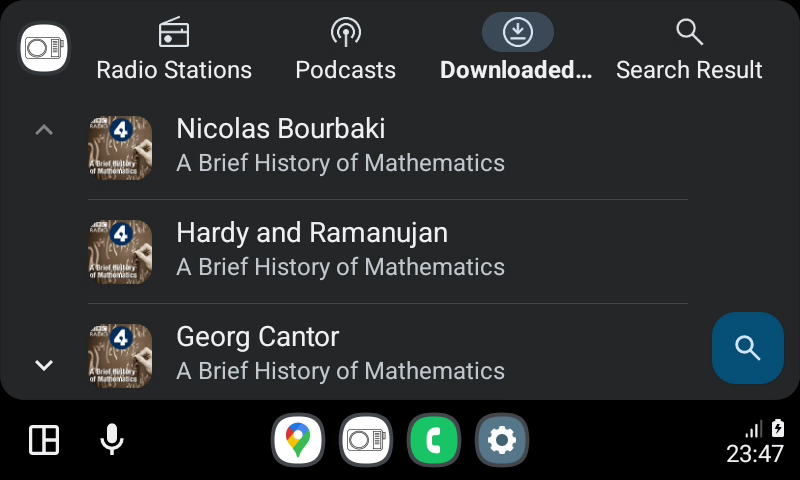
Download podcast episodes on your mobile or tablet and listen to them on the go (no internet service needed), e.g. in your car, on a flight or whenever wherever you do not have free internet access.
Privacy
No data collection, storing or analysing of listening habits etc. Have a look at our privacy policy for a description of permisssions needed or used.
Mobile, Tablet, TV, Car
One single app to be used on mobile, tablet, TV (Android TV, Google TV) and car radio (Android Auto).
More than 50'000 stations
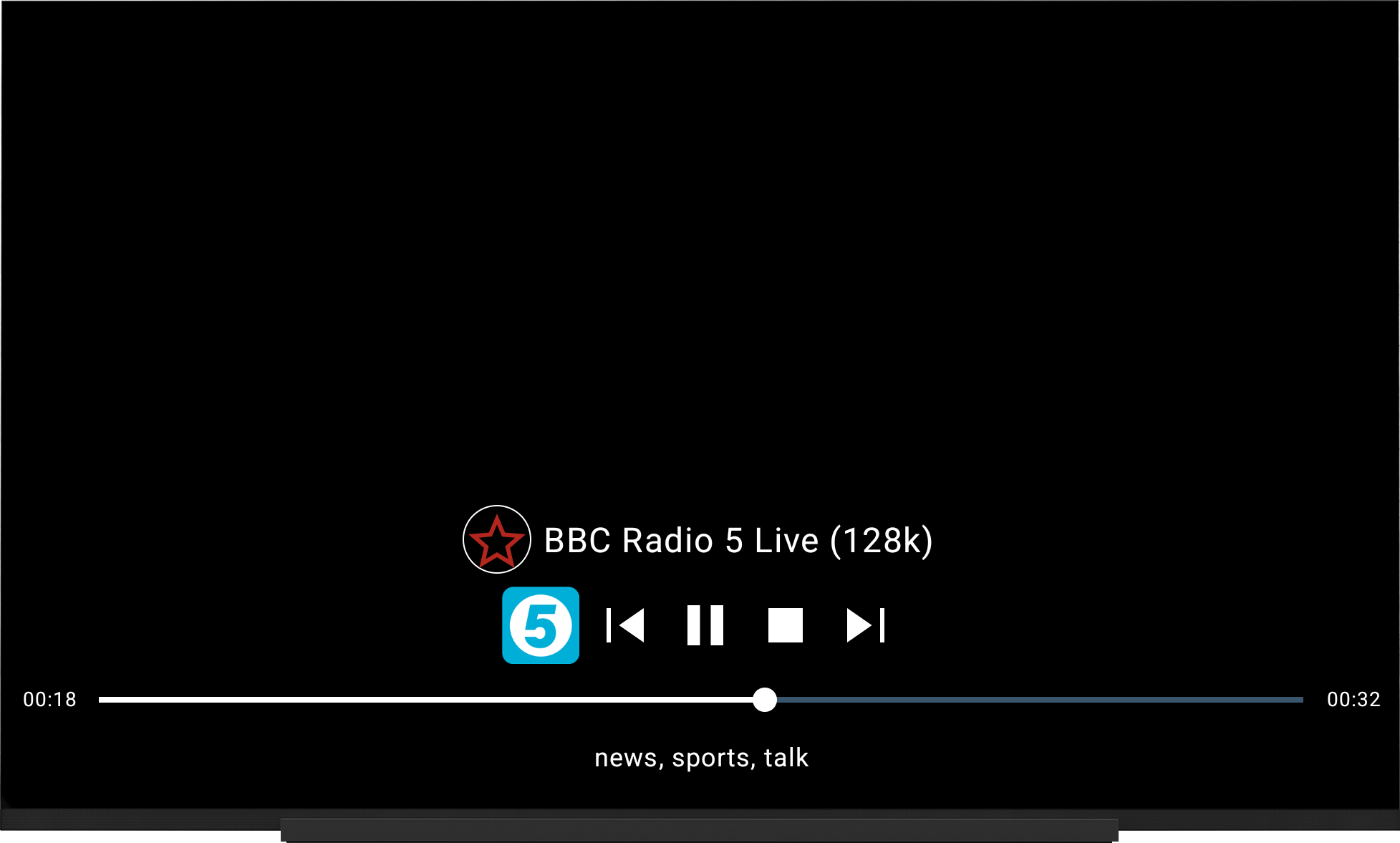
Get access to over 50'000 radio stations of all genres (news, rock, pop, funk, classical, ...) and countries.
Favorites
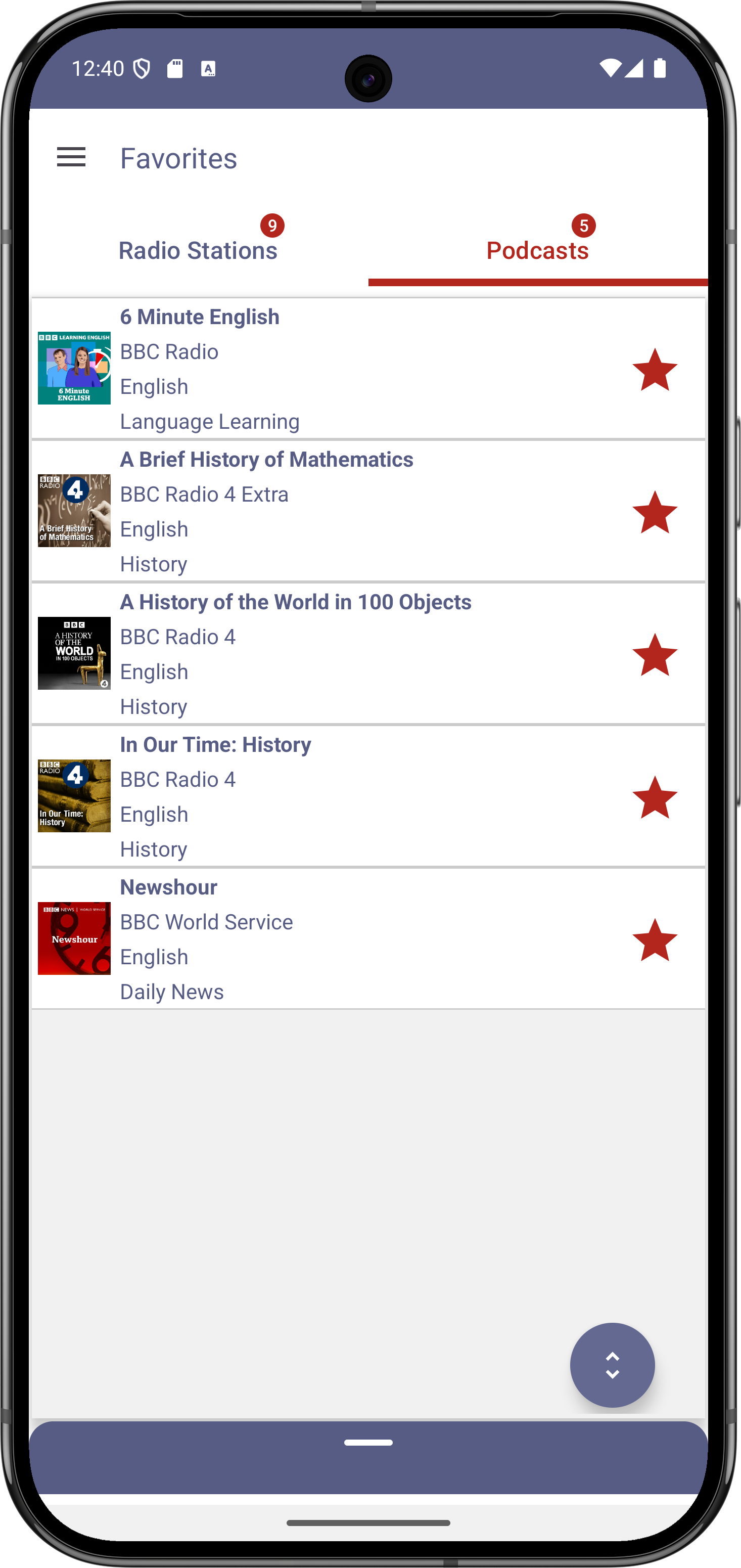
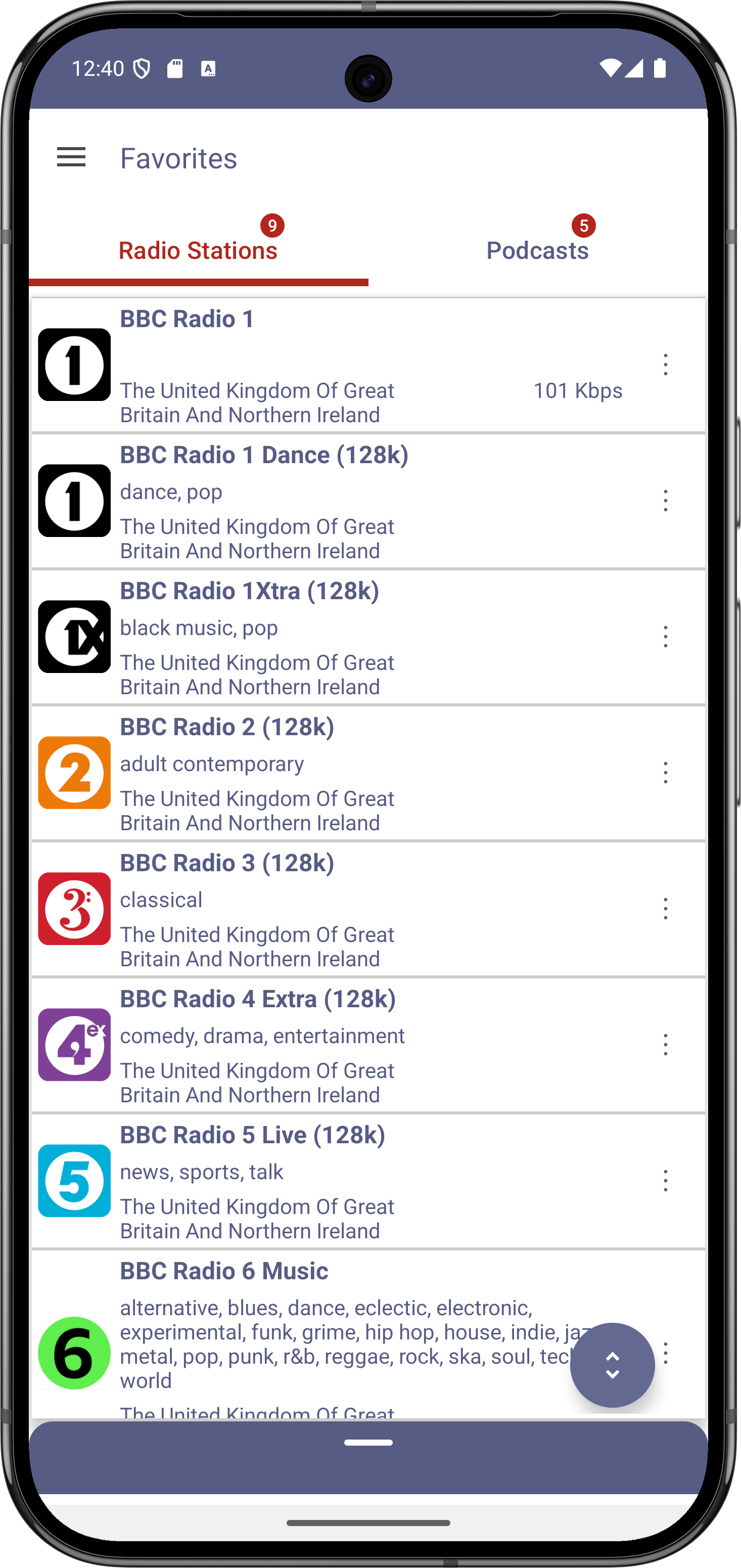
Collect your favorite radio stations and podcasts and synchronise them on all your devices.
Synchronisation
Sync and backup your favorites on your preferred Cloud storage or NAS.
No account needed
Sophisticated Bluetooth synchronisation of your favorite stations and podcasts. No account is needed and no third party server involved.
M3U-Files
Save your stations in your own M3U-file, make it accessible via http(s) link and use in directly in VanillaRadioplayer.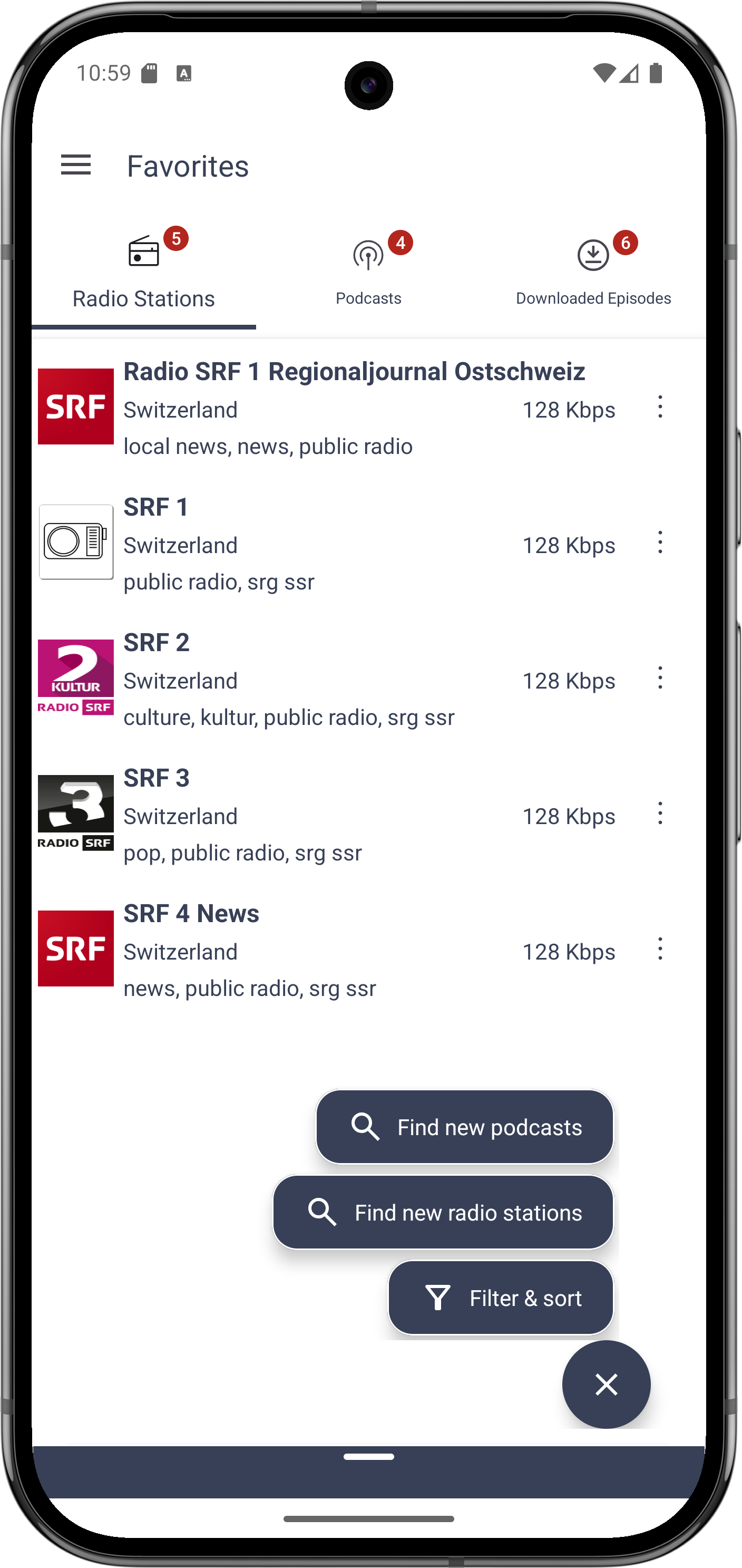
Highlights
-
One single app for your Android Mobile, Android Tablet, Android TV (or Chromecast) and Android Car Radio
-
Find radio stations in a database with more than 50'000 stations worldwide
-
Find podcasts from all over the world
-
Download podcast episodes and listen on the go without Internet service
-
Add stations and podcasts you don't find in the databases
-
Import your podcasts using OPML files
-
Synchronise your favorites on all your devices using Bluetooth
-
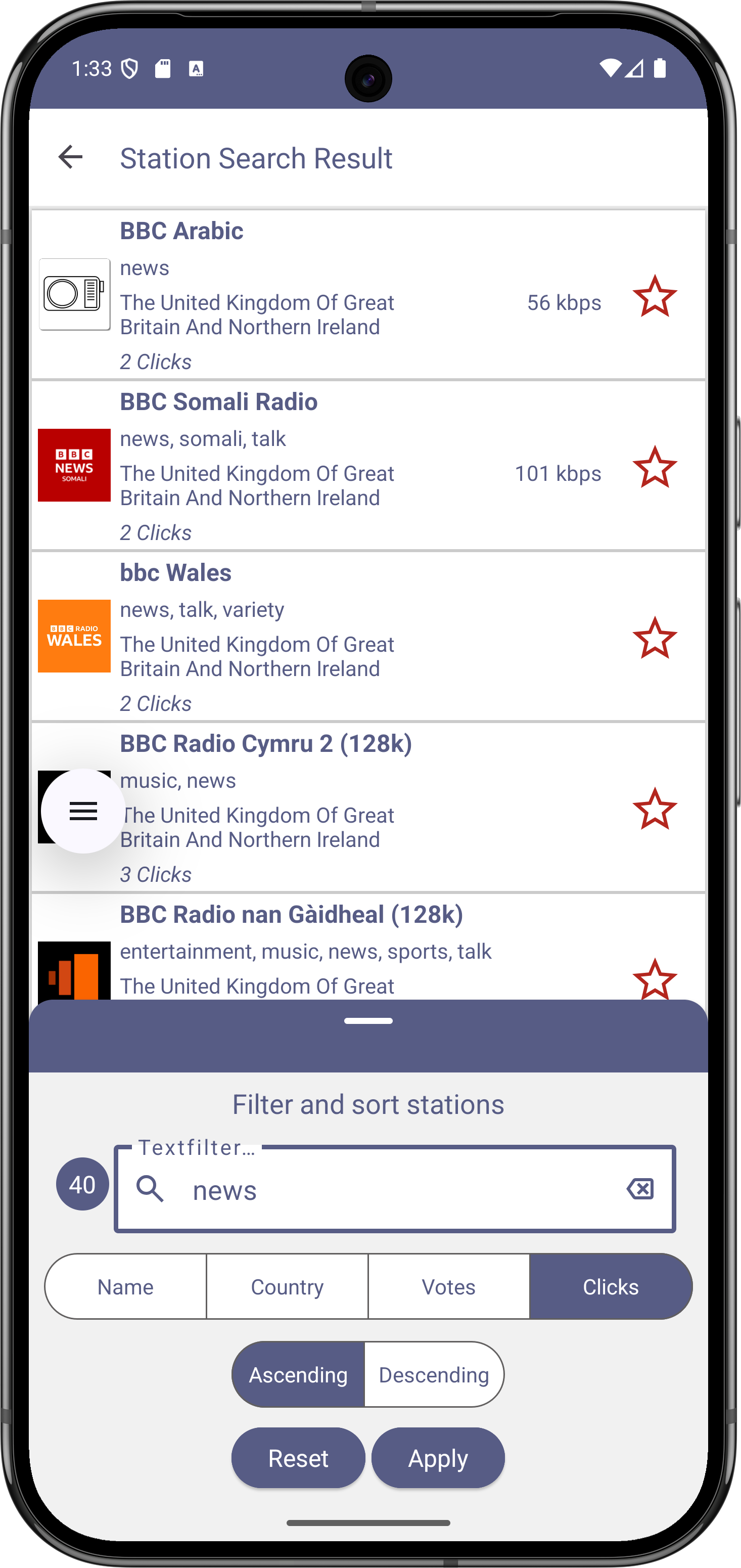
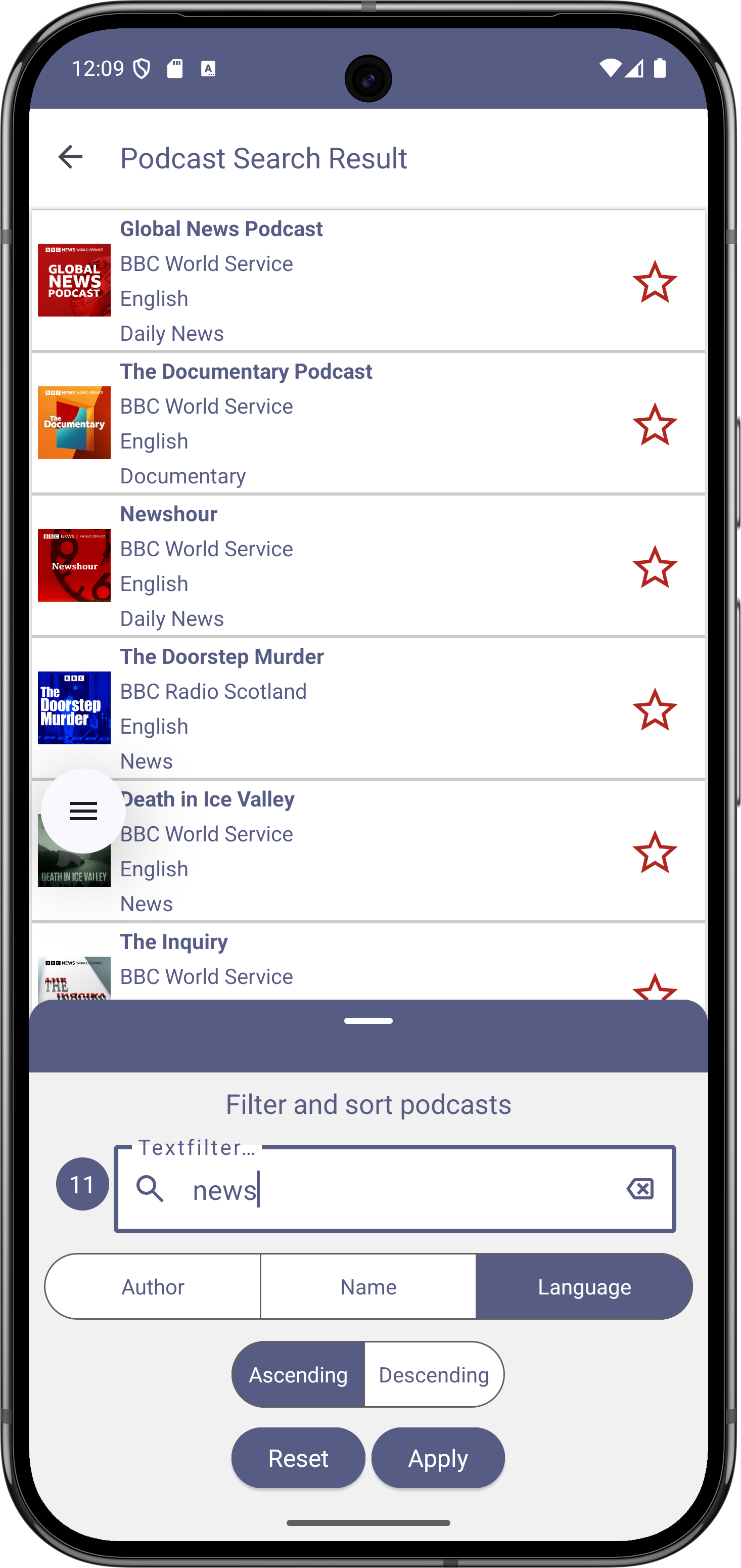
Filter your favorites, search results and podcast episodes
-
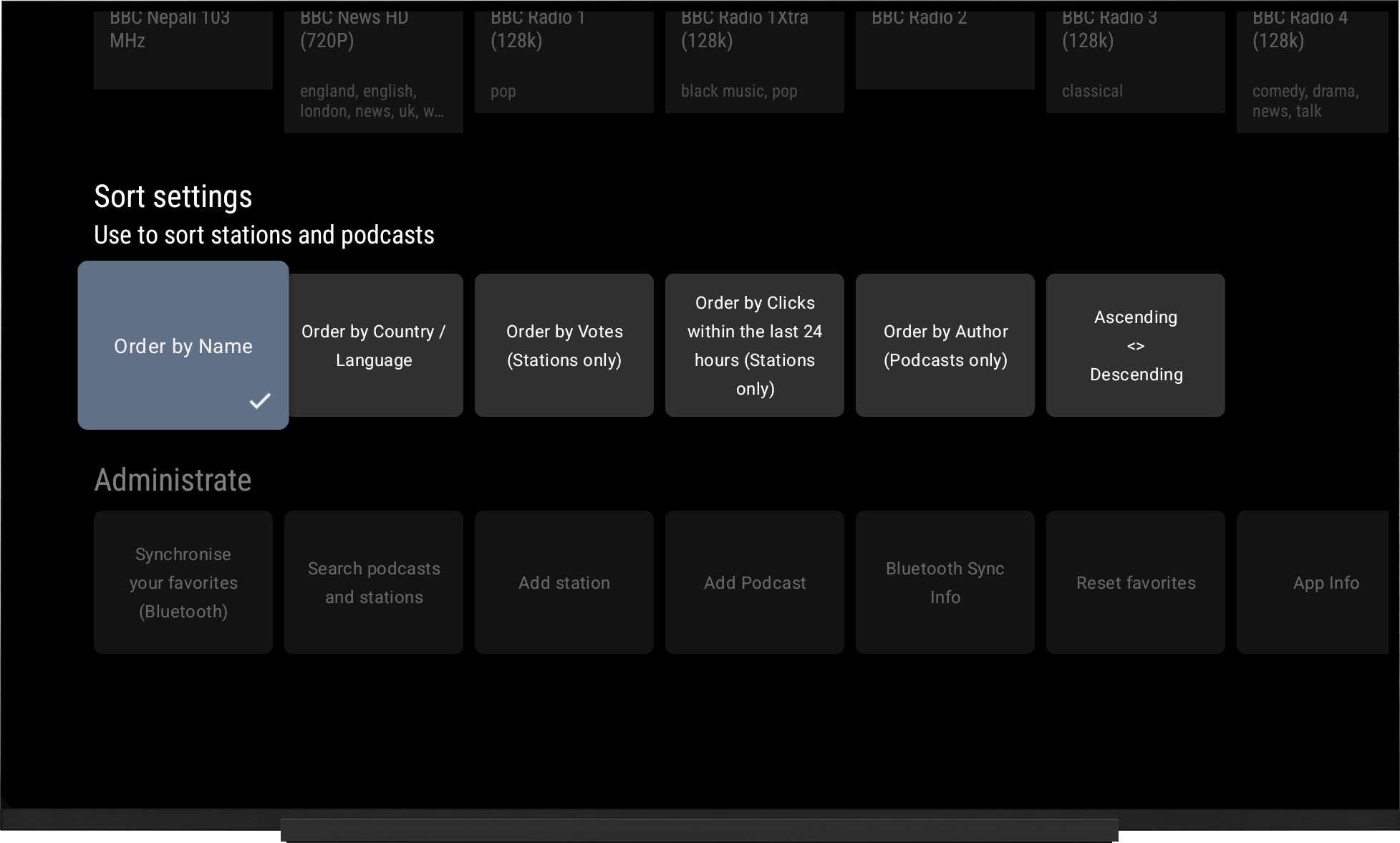
Sort your favorites, search results and podcast episodes
-
Backup your favorites on your preferred storage device
-
No account needed, no registration - you decide where your favorites are stored
-
No tracking or storing of your listening habits


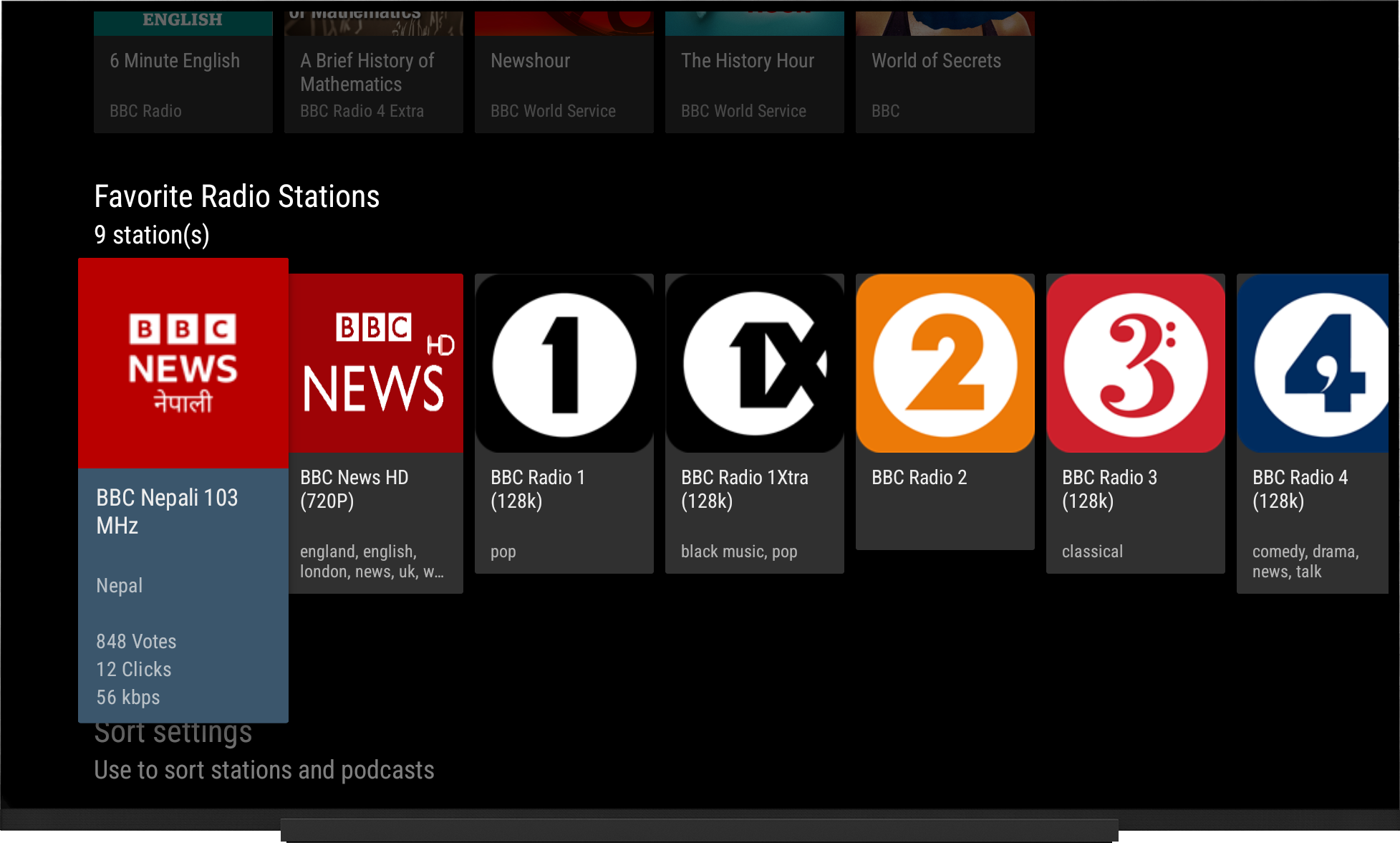
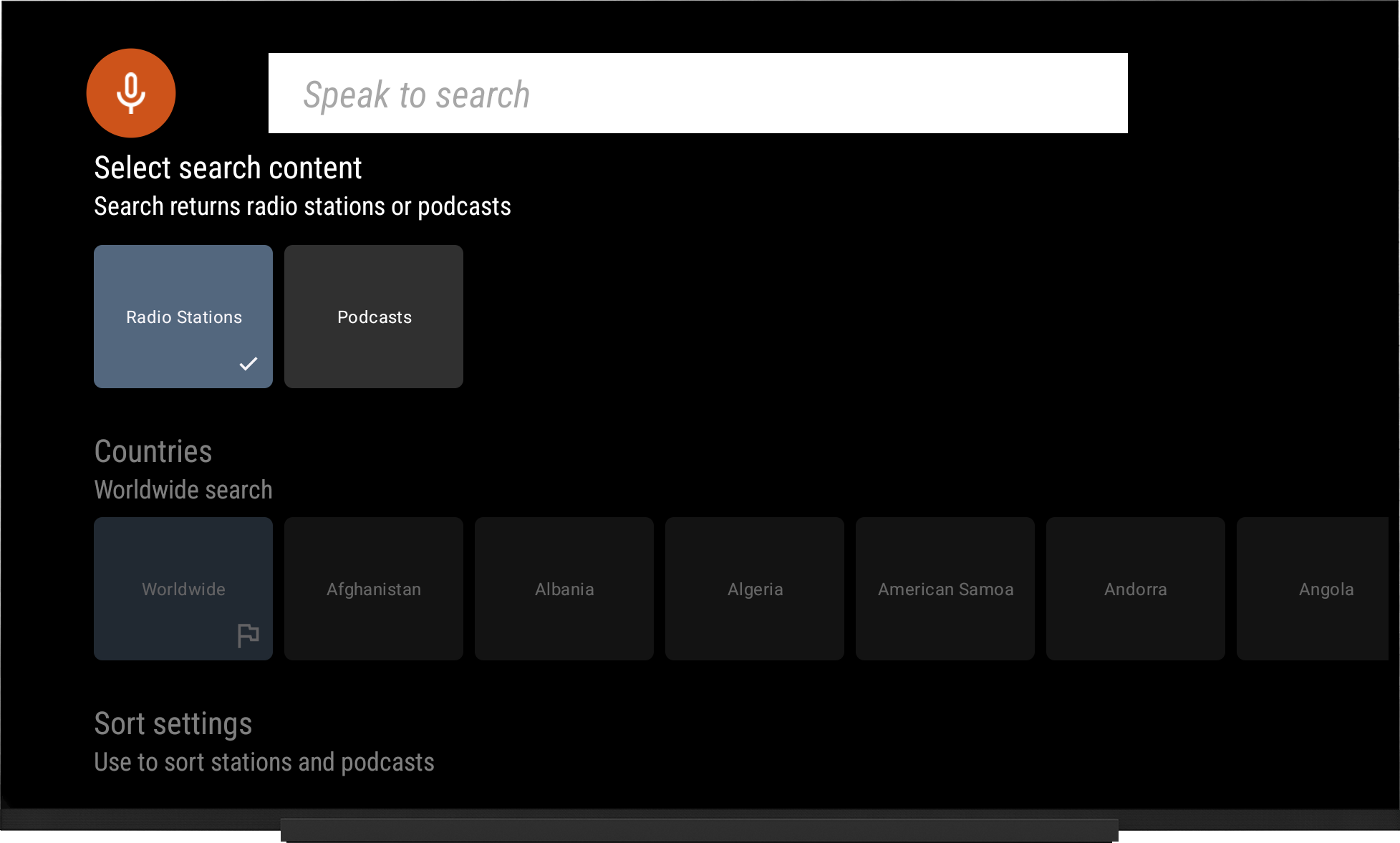
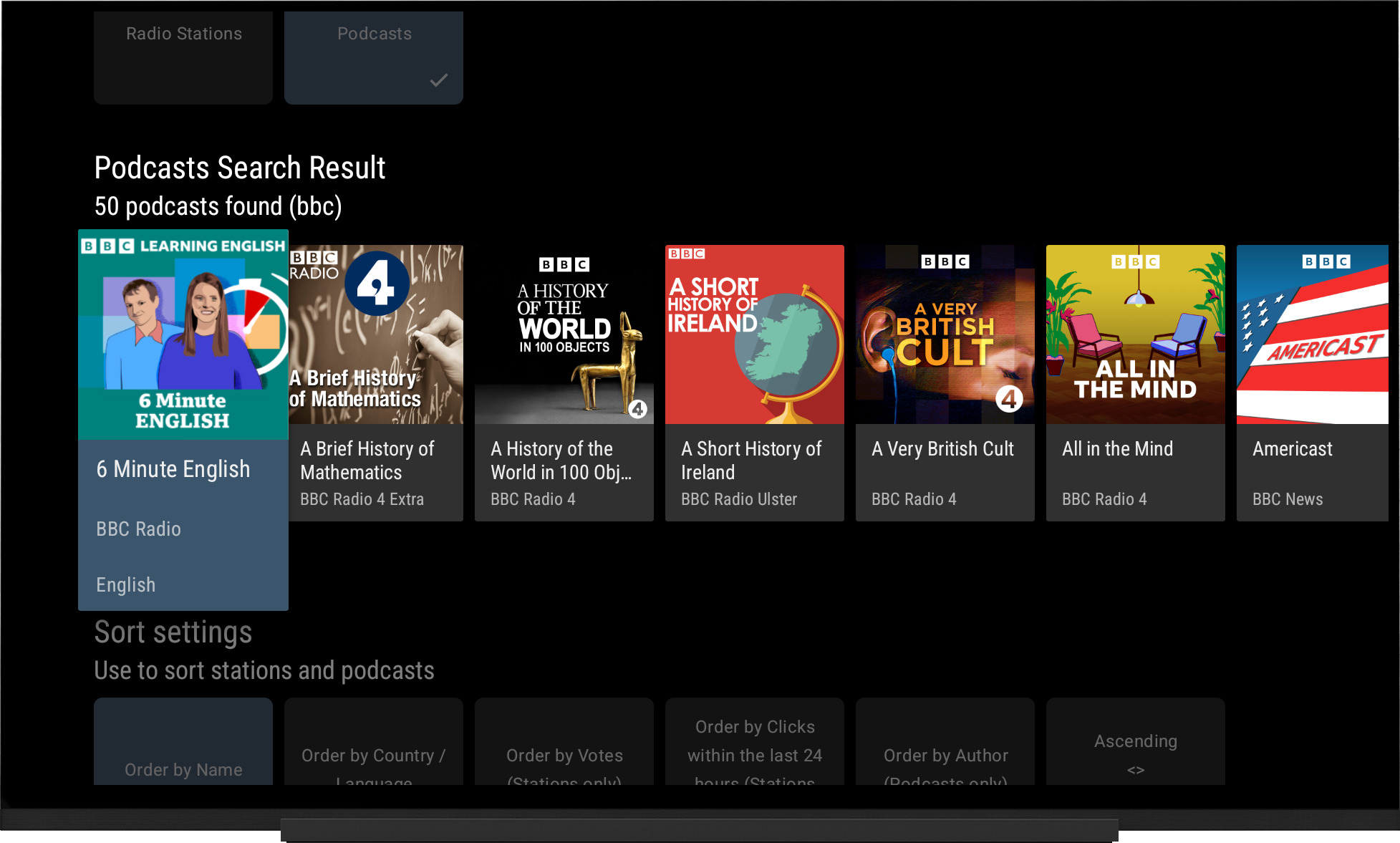
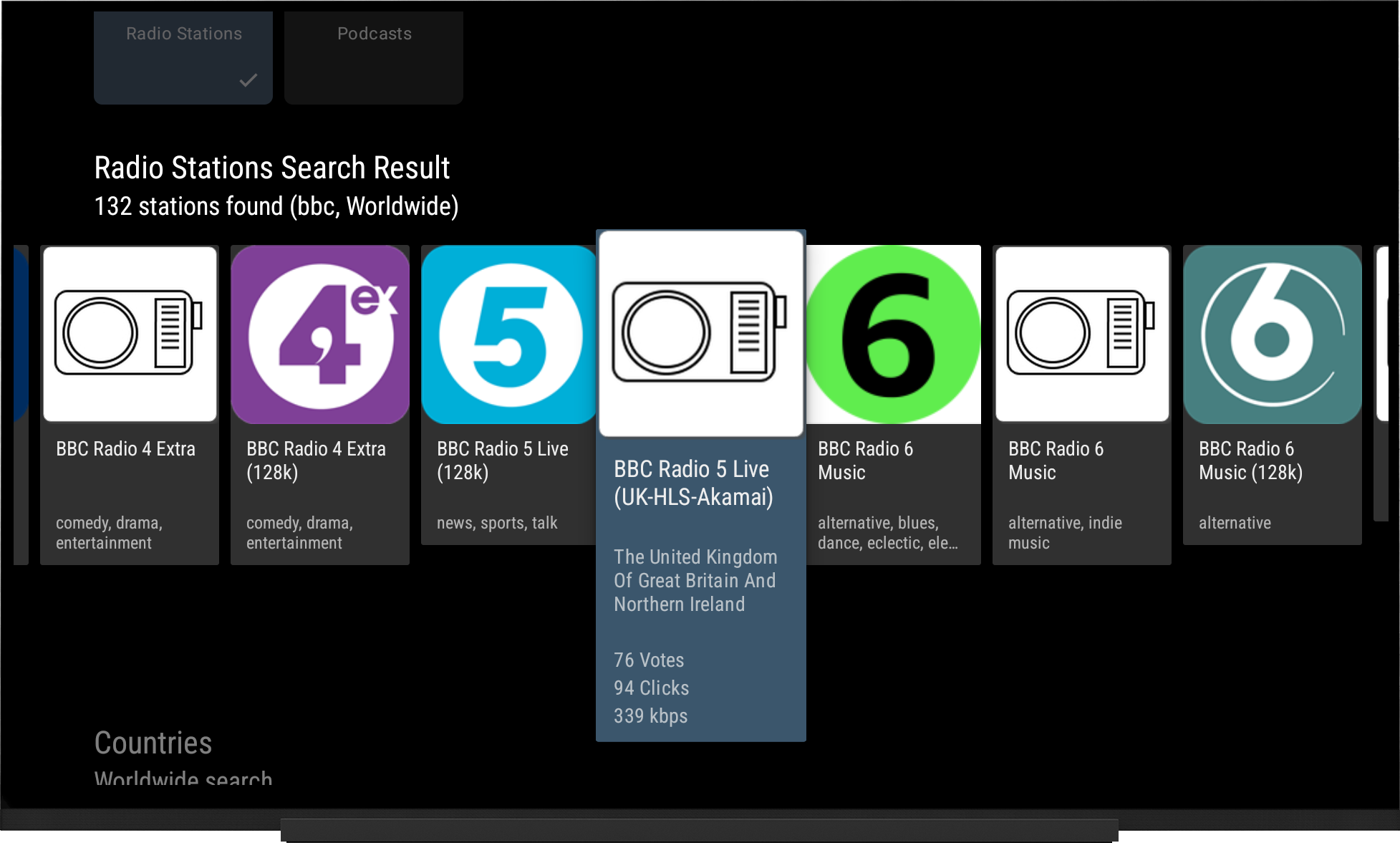
Frequently Asked Questions
Downloaded episodes are stored in the apps internal storage area and are not accessible by other apps.
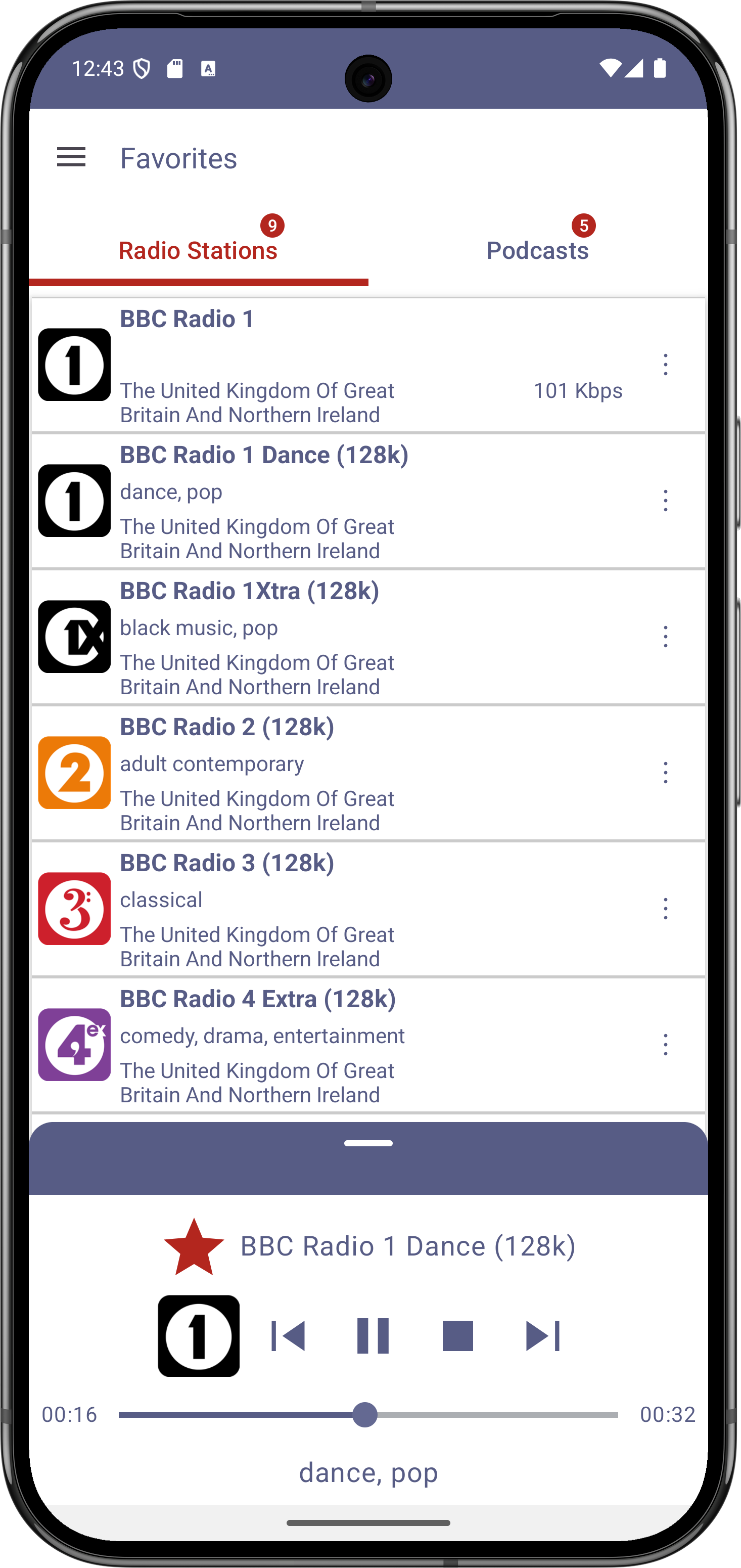
Hitting the home button does not stop the player. There are several ways stop VanillaRadioplayer playing a station or podcast:
- Clicking on the back button eventually asks whether you want to turn off the player or let it play in the background. Choose Turn off to stop the player completely.
- If app is closed: open the app again and push the stop button of the player, or go to the notifications of the device and push the stop button in the media output of VanillaRadioplayer.
- Start VanillaRadioplayer app on the two devices you would like to sync
- In both apps, go to the app menu and start Bluetooth synchronisation
- Grant permissions needed for Bluetooth connections
- On one device: select the other device from the device list showing
- In case the two devices are not paired yet, a corresponding dialog appears
- The two devices are paired: Bluetooth synchronisation is automatically started and executed
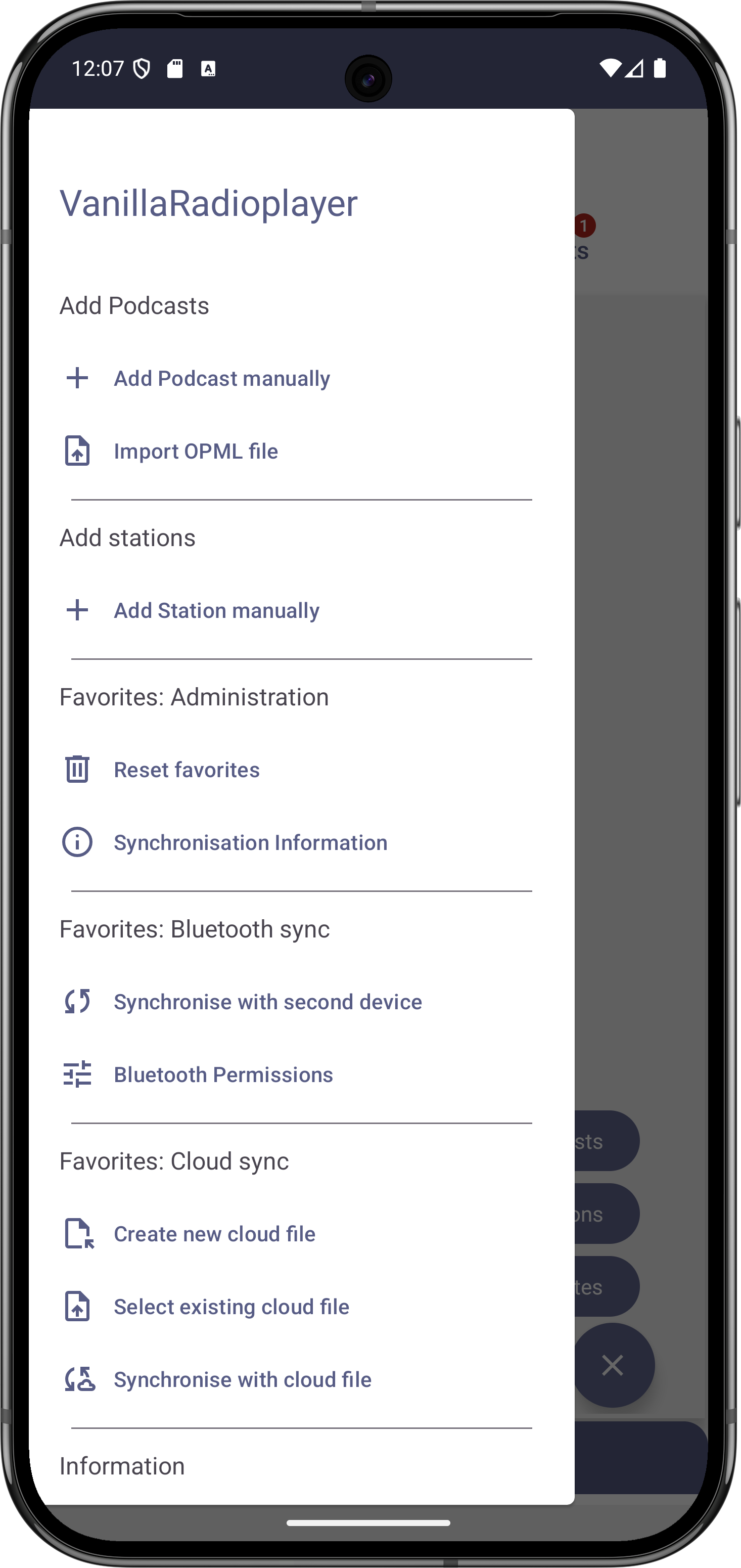
The app menu - or Hamburger menu - can be found on the main screen of your mobile phone app on the top to the left:
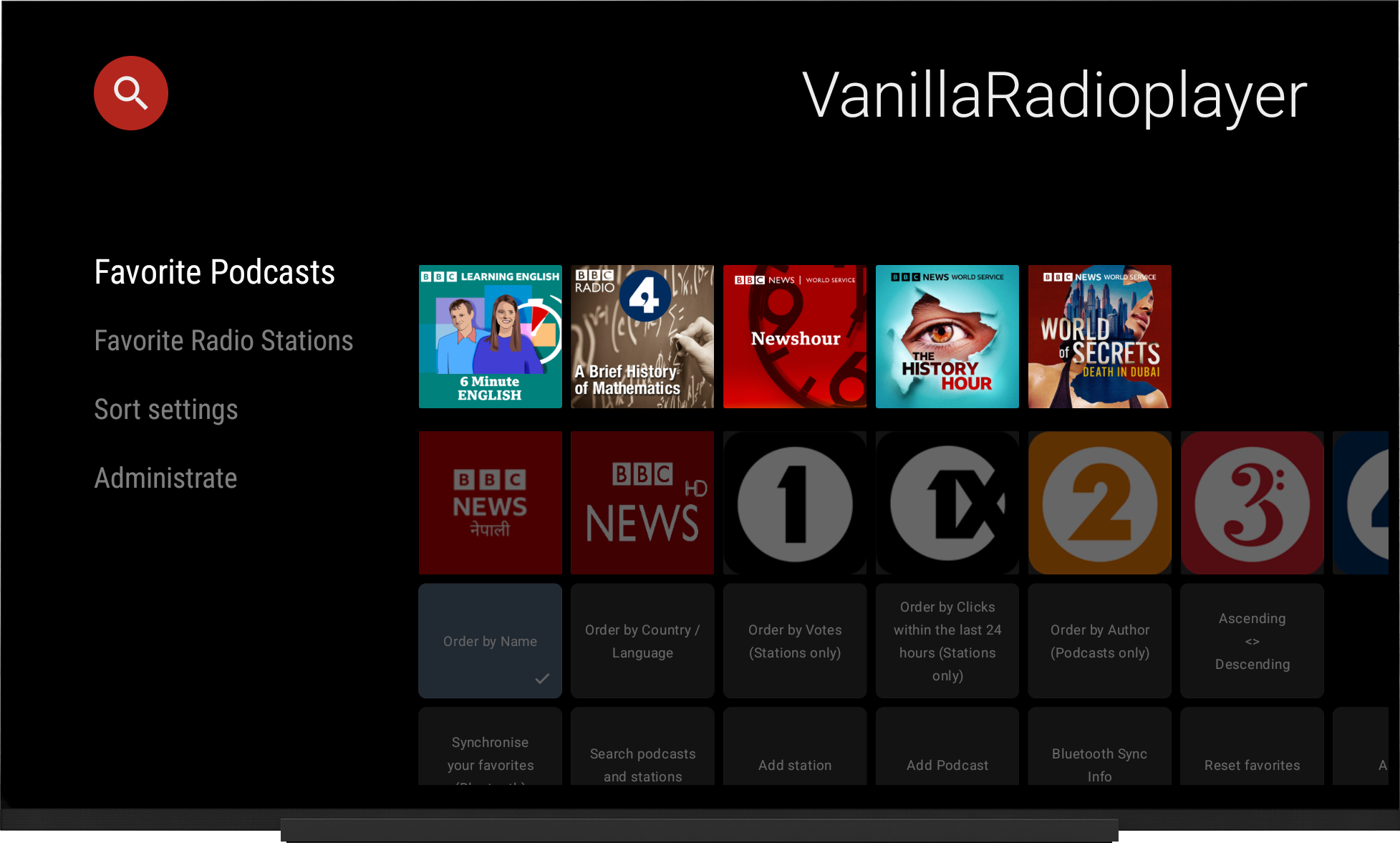
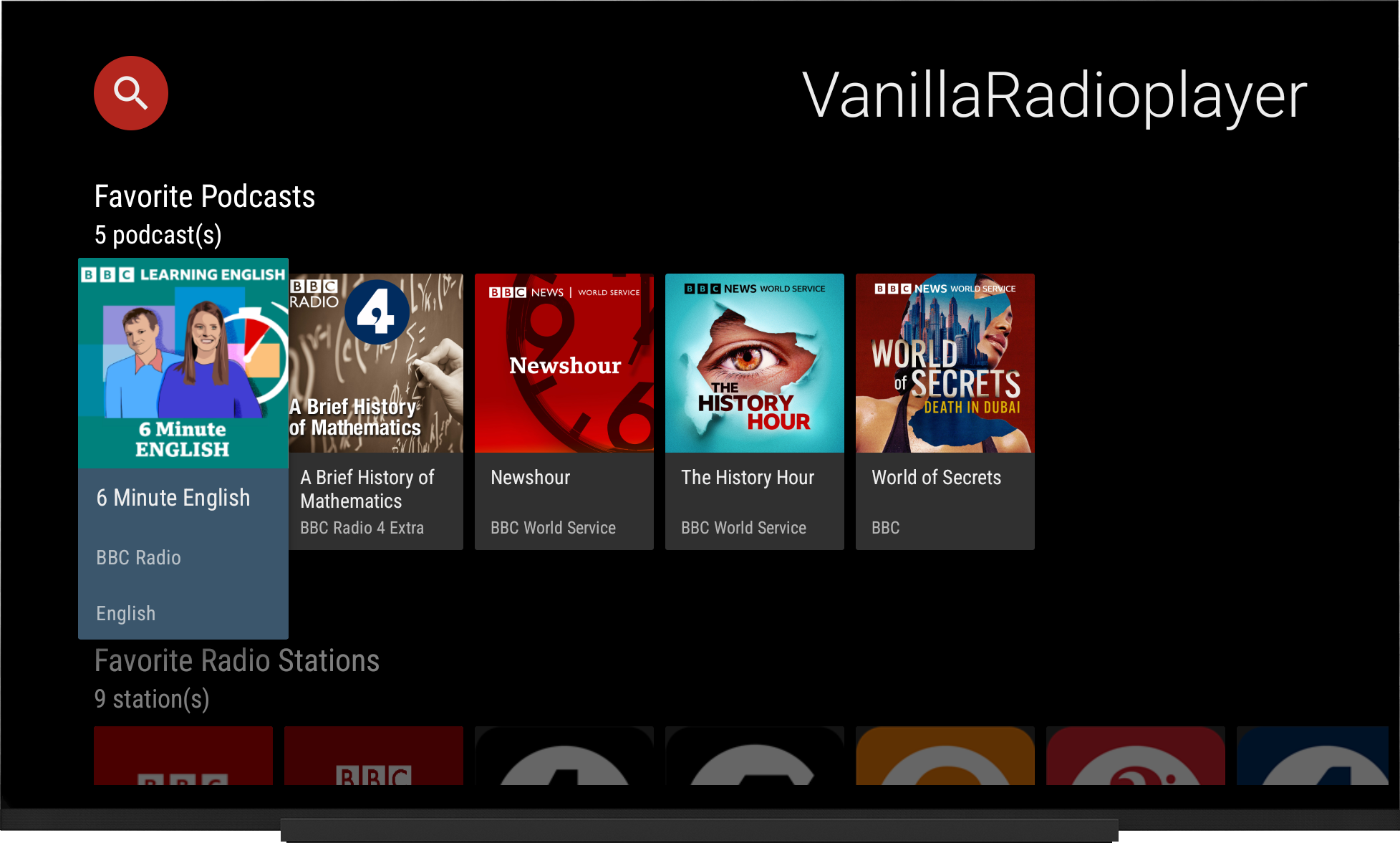
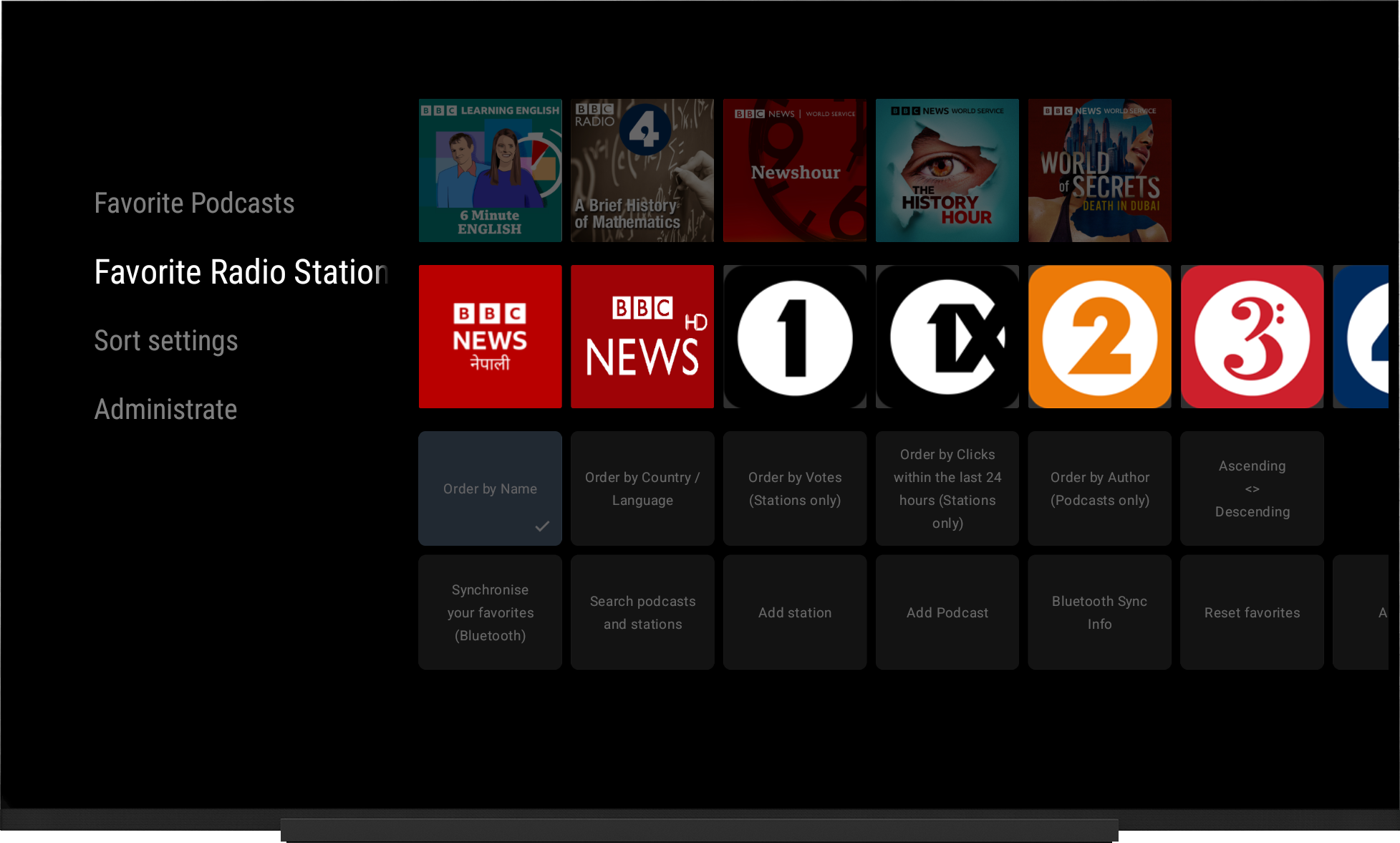
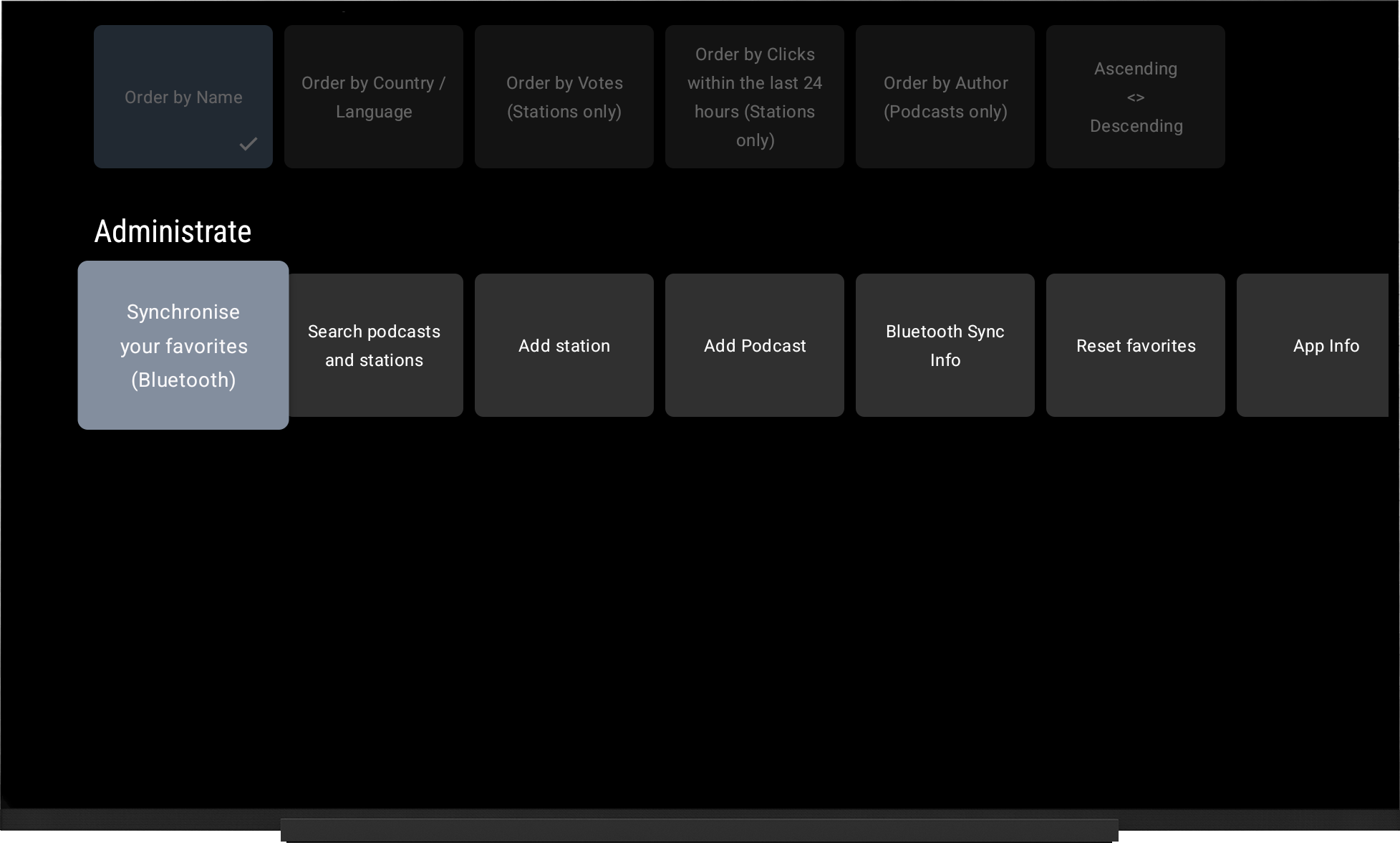
 On TV, you will find the corresponding functionalities on the main page: click on header
Administrate
On TV, you will find the corresponding functionalities on the main page: click on header
Administrate
On TV, you will find the corresponding functionalities on the main page: click on header
Administrate
There are three possibilities:
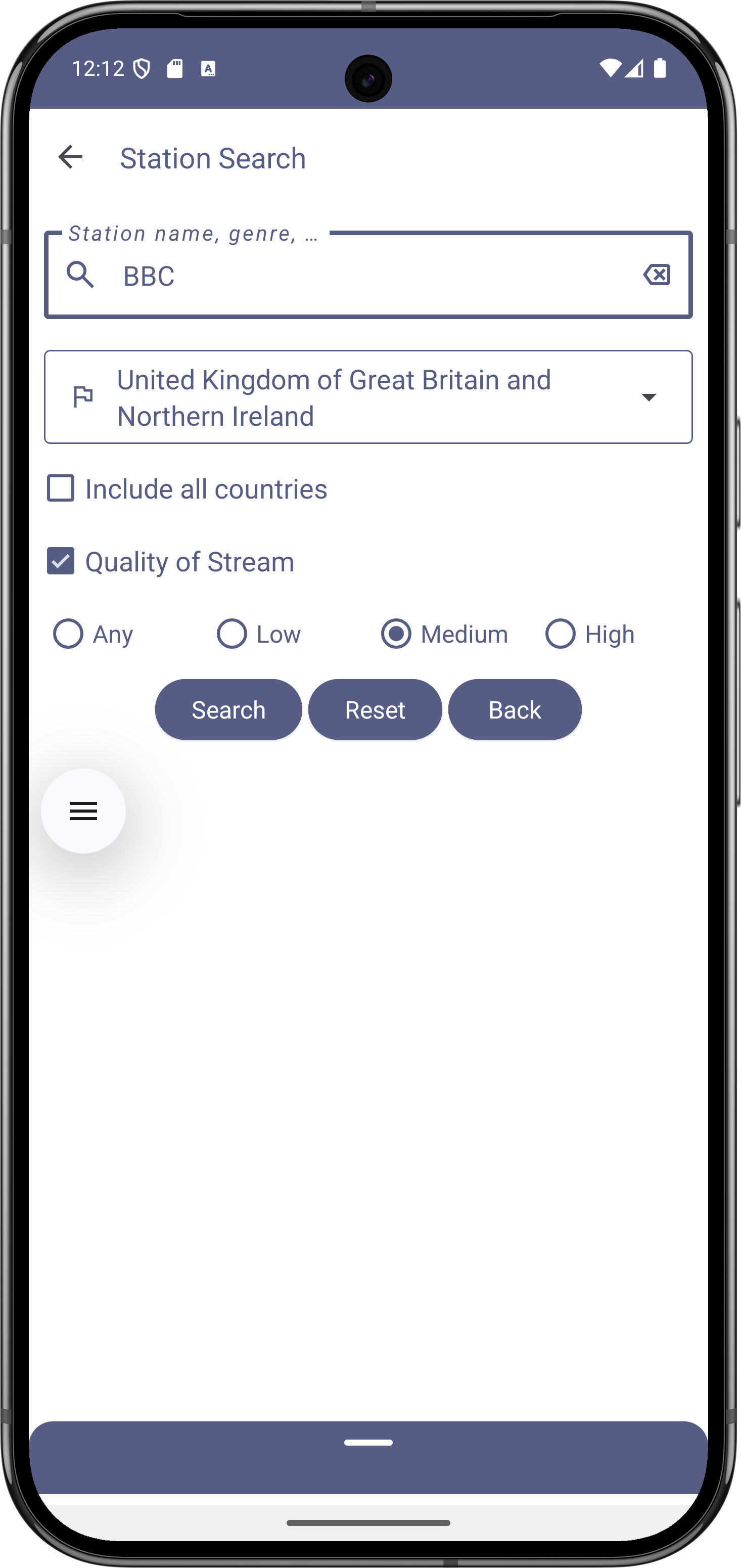
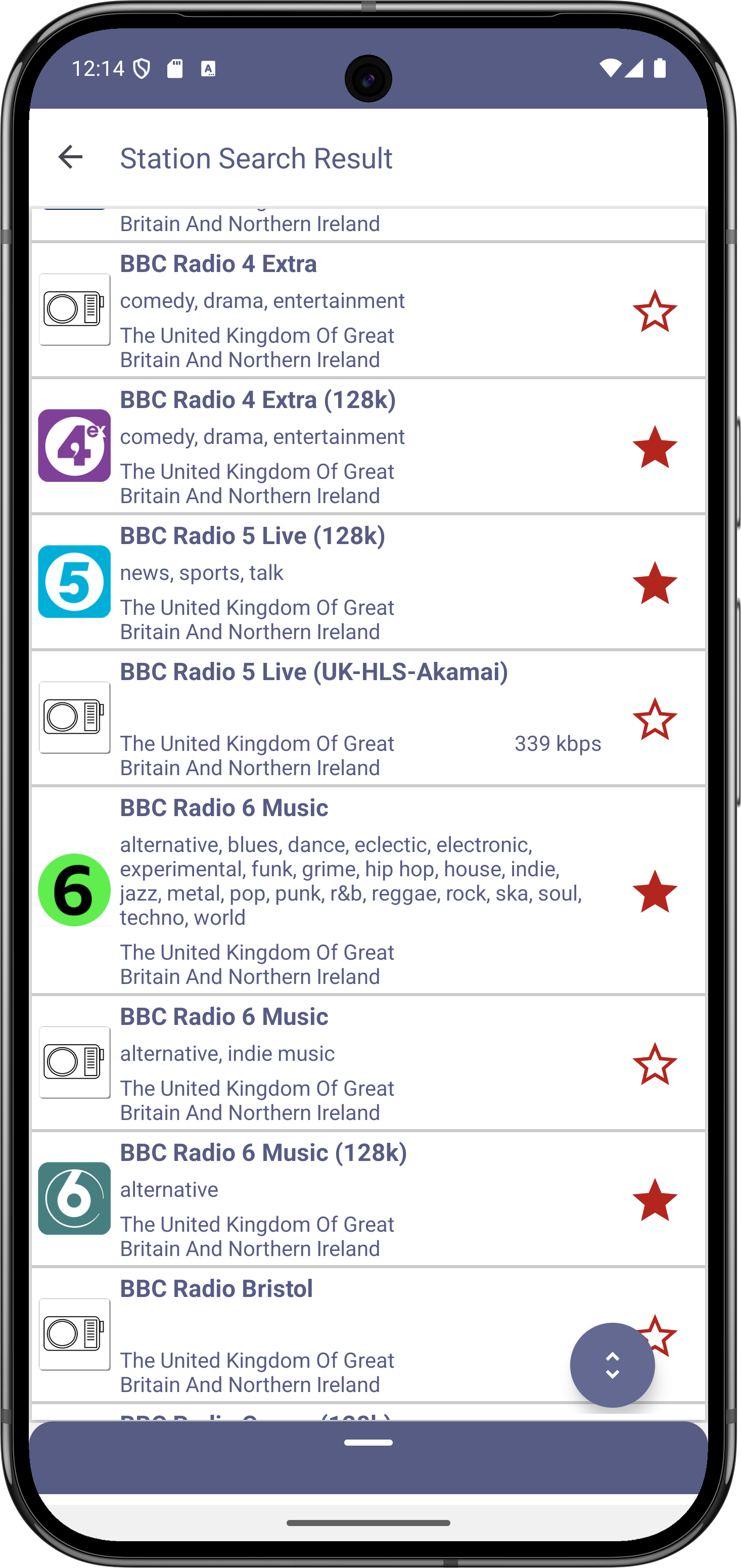
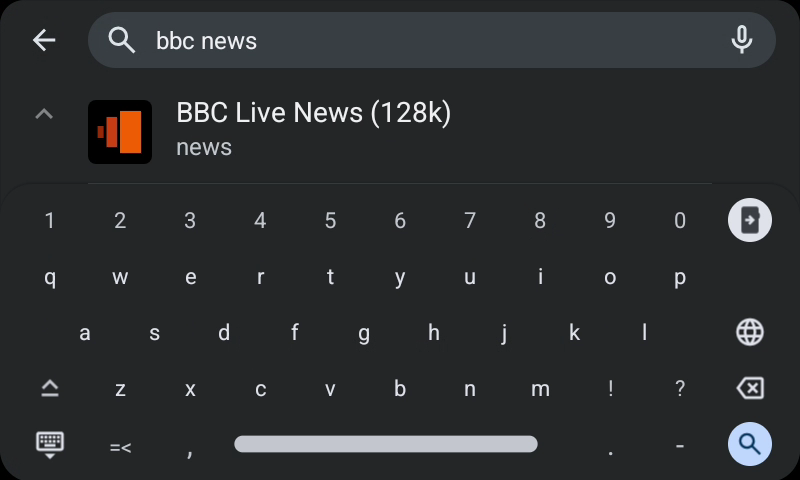
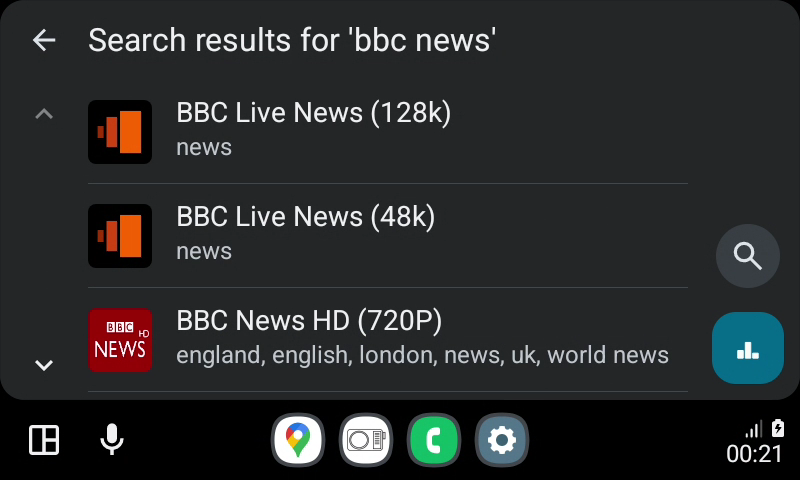
- Use the search functionality built in in the app. You can search for radio station names as well as genres and combine them, e.g. bbc news pop rock . By clicking on the red favorite mark, you add the corresponding station to your favorites. If the favorite mark is of a solid red, the station is already in your favorites.
- If you do not find a station you like using the search functionality, you can always add it manually.
- If you use the VanillaRadioplayer app on another device and already have a list of favorite stations available, use either Cloud Sync or Bluetooth Sync .
There are two possibilities:
- Search the podcast you would like to add in the WWW (we recommend to start wih the official website of the podcast provider). Once you have found the podcast, look for its subscription details and choose the link that says RSS Feed or RSS Link and copy the link. In the VanillaRadioplayer app menu, click on menu station Add a podcast , this opens a dialog, paste the link into the text field and if the link is valid, information about the podcast is displayed. Click the save button and your podcast is added to you favorites.
- If you have an OPML file (i.e. an export of podcasts created by another app), you can import the OPML file content directly.
Mobile App:
-
In the list of your favorites, click on the more menu
 of the station you would like to edit and choose
Edit
in the context menu.
of the station you would like to edit and choose
Edit
in the context menu.
- Radio stations: in the list of your favorites, do a long click the station you would like to edit.
- For each podcast, its list of episodes is downloaded the first time you open the podcast details. In order to reduce download traffic, the app itself usually does not update the episode list anymore until the next restart of the app (or screen rotation on mobile/tablet).
- If you want to refresh the episode list on your mobile or tablet, just swipe down the episode list.
- If you want to refresh the episode list on your TV, click the refresh button on the top left in the podcast details.
- Note that on Android Auto, the list of episode list is refreshed (reloaded) every time you access it (no swipe to refresh available).
- In case the system reports low main memory, the episode lists are cleared
- Episodes (playable files) are not downloaded but streamed
- Your car's multimedia system must support Android Auto.
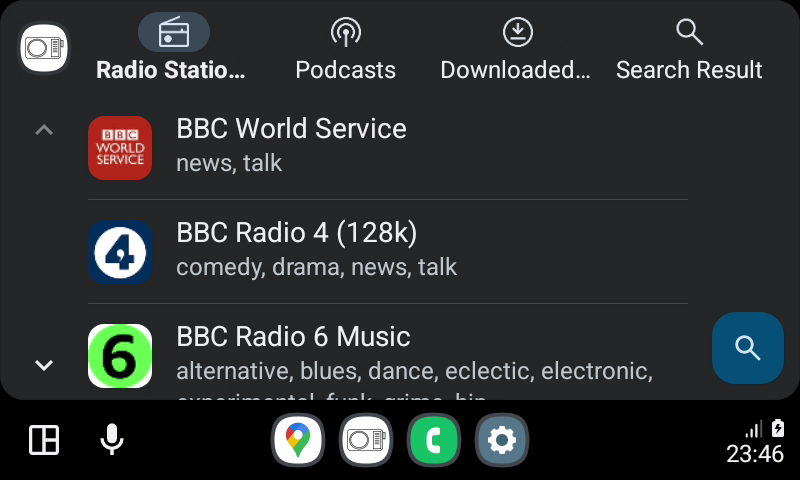
- Connect your mobile phone or tablet running the VanillaRadioplayer app with Android Auto. The VanillaRadioplayer app will appear in the list of apps in Android Auto.
- You can now start VanillaRadioplayer on Android Auto.
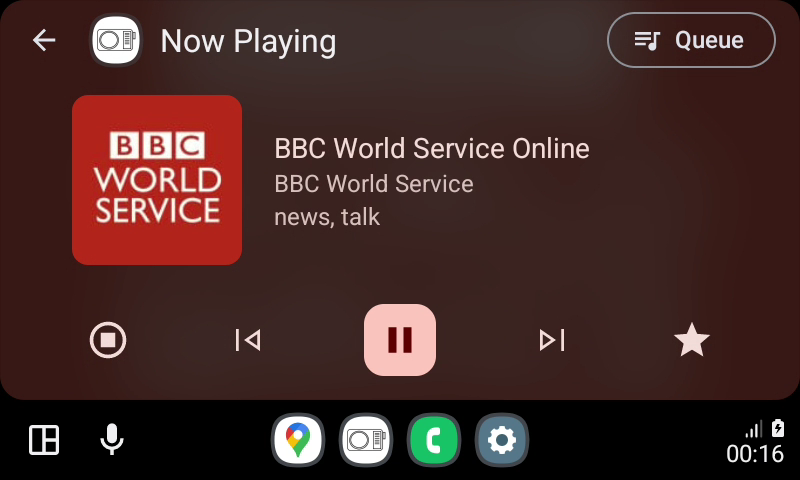
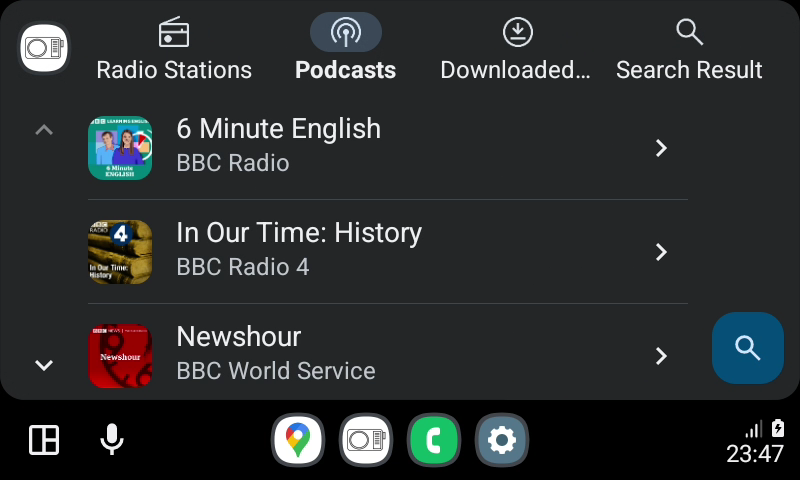
- The VanillaRadioplayer app on Android Auto shows the list of your favorite stations and podcasts and lets you search for radio stations.
- You can control the player and search the lists on your car's multimedia display, or on your mobile phone or tablet running VanillaRadioplayer.
- Important: the station or podcasts your are listening to are streamed over your mobile phone or tablet (costs may apply).
You can use your watch to control the app running on your mobile phone or tablet etc. Just connect your watch via Bluetooth with your mobile phone or tablet.
- Your m3u file must be accessible as http(s) link and contain links to streams.
- Add a new station and enter the url to the m3u playlist as station link.
- Yes, there are many other ways. For example, if the VanillaRadioplayer App runs on Google TV, you can use a Google Chrome browser on a PC (in same network) to control what's playing on Android TV.
- On your smartphone or tablet, you can start the VanillaRadioplayer app, play a station or podcast and close the app. The station or podcast plays on in the background. You can control the player using an Android wearable (e.g. watch), via notification entry on the phone, or many other Android devices connected to your smartphone (e.g. via Bluetooth) and having a media controller app installed.
- If not already done, select "New cloud file" in the app menu and create a file. A copy of this file can be stored on a second device or the Cloud file itself can be created directly on a storage device or NAS which is contained in a backup process.
- Note that this Cloud file can be used to synchronise its content with other devices running VanillaRadioplayer. This way you keep all your devices up-to-date.
Our App is available for Android

Get in contact
Visit our app in Google Play Store for contact details.